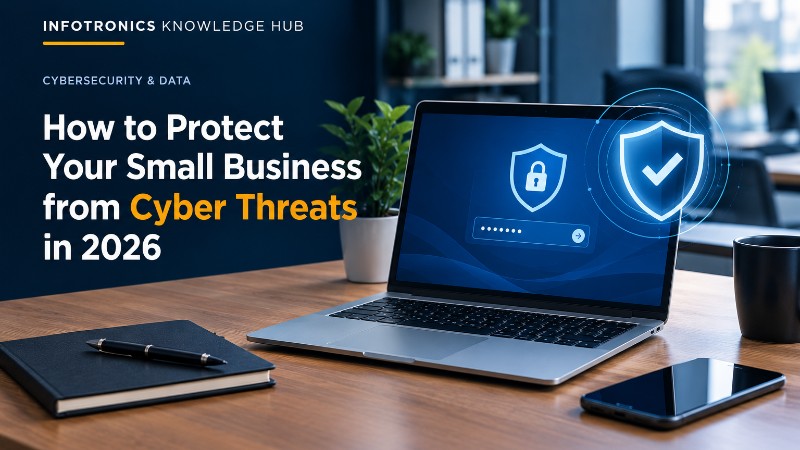
How to Protect Your Small Business from Cyber Threats in 2026
INFOTRONICS KNOWLEDGE HUB
CATEGORY: CYBERSECURITY & DATA
How to Protect Your Small Business from Cyber Threats in 2026
Running a small business means relying on technology more than ever. You might use email to communicate with suppliers, WhatsApp to respond to customers, mobile banking to make payments, cloud services to store documents, and business software to manage sales and records.
These tools make daily operations easier, but they also create opportunities for cybercriminals when accounts, devices and business information are not properly protected.
The good news is that improving cybersecurity does not have to begin with expensive equipment or complicated software. Many of the most useful protections involve good habits, secure account settings, regular updates and a reliable backup plan.
This guide explains the main cyber threats small businesses should understand in 2026 and the practical steps you can take to reduce your risk.
Quick Answer: How can a small business improve cybersecurity?
Start by using strong, unique passwords and enabling multi-factor authentication on important accounts. Keep computers and applications updated, train employees to recognise suspicious messages, back up important data, secure your Wi-Fi network, and limit access to sensitive business information.
You should also decide what to do if an account is compromised, a device is infected, or important files suddenly become unavailable. Cybersecurity is not about guaranteeing that nothing will go wrong; it is about reducing the likelihood of an incident and being prepared to recover.
At a Glance
|
Security measure |
Why it matters |
|---|---|
|
Strong passwords and multi-factor authentication |
Makes it harder for attackers to access accounts |
|
Staff awareness |
Reduces the risk of falling for scams and phishing |
|
Software updates |
Fixes known security weaknesses |
|
Regular backups |
Helps recover important information after data loss or ransomware |
|
Secure Wi-Fi and devices |
Reduces opportunities for unauthorised access |
|
Access controls |
Limits what each employee or account can access |
|
Incident response plan |
Helps the business act quickly when something goes wrong |
1. Understand the cyber threats your business may face
Cyberattacks do not always begin with an obvious technical attack. Sometimes, an incident starts with an ordinary-looking email, a fake payment message, an exposed password or a computer that has not been updated.
Here are some common threats to understand.
Phishing and fake messages
Phishing is an attempt to trick someone into revealing information, opening a malicious attachment, visiting a fraudulent website or approving an unauthorised action.
A message might pretend to come from a bank, supplier, delivery company, online service or manager. It may say that an account will be closed, an invoice is overdue, or an urgent payment must be made.
In Kenya, the national KE-CIRT/CC has reported phishing campaigns that imitate familiar brands, payment platforms and internal communications. These have targeted email, cloud services and mobile banking users. You can read its 2025–26 second-quarter cybersecurity report.
What to do: Do not rely on the sender's name or profile picture alone. Check the full email address, look carefully at links, and verify unexpected payment requests using a known phone number or a separate trusted communication channel.
Ransomware and other malware
Malware is malicious software that can damage devices, steal information or provide unauthorised access. Ransomware is a type of malware that can make files or systems inaccessible, often with a demand for payment.
An infection may disrupt customer service, accounting, sales, inventory management or access to essential documents.
What to do: Keep software updated, avoid untrusted downloads, use appropriate device protection, restrict access to important systems and maintain backups that attackers cannot easily change or delete.
Stolen or reused passwords
Using the same password for email, social media, business software and other accounts creates unnecessary risk. If one service is compromised, attackers may try the same details on other accounts.
What to do: Use a different, strong password for every important account. A reputable password manager can help you create and store them without needing to memorise each one.
Outdated devices and applications
Computers, phones, routers and applications can contain security weaknesses. When vendors release updates that fix known vulnerabilities, delaying installation can leave devices exposed.
What to do: Enable automatic updates where appropriate and keep operating systems, browsers, office applications, security tools and router firmware up to date. Plan to replace devices and software that no longer receive security updates.
Lost devices, unsafe networks and accidental data exposure
A lost laptop or phone could expose business email, saved passwords or customer records if the device is not properly secured. Likewise, overly broad file-sharing permissions can expose documents to people who do not need them.
What to do: Use screen locks, device encryption where supported, secure Wi-Fi settings and carefully managed file permissions. Avoid accessing sensitive business systems over untrusted networks unless you have an appropriate secure connection.
2. Use strong passwords and multi-factor authentication
Passwords remain an important part of account security, but a password alone may not be enough.
Create unique passwords for important accounts, especially business email, banking, accounting systems, social media pages, cloud storage and administrator accounts. Avoid passwords based on easily discovered information such as your name, birthday or business name.
Where available, enable multi-factor authentication (MFA). This requires an additional form of verification beyond the password, helping protect an account even if a password is stolen.
Prioritise administrator accounts and accounts that can access sensitive information or reset other accounts. Use the strongest practical MFA method offered by the service. Security keys and suitable authenticator-app methods generally offer better protection against phishing than codes sent by SMS or email.
The National Institute of Standards and Technology (NIST) recommends strong passwords, MFA, regular backups and timely software updates as foundational cybersecurity measures.
Infotronics Expert Tip: Start with your main business email account. An attacker who gains control of that account may be able to reset passwords for other services or impersonate your business.
3. Train employees to recognise suspicious messages
Technology can block some threats, but employees also need to know how to identify suspicious requests.
Cybersecurity awareness should be practical and relevant to everyday business activities. Teach staff to:
-
Check unexpected attachments and links before opening them.
-
Verify changes to supplier bank details before making payments.
-
Treat urgent requests for money, passwords or verification codes with caution.
-
Never share one-time passwords or approve authentication prompts they did not initiate.
-
Report suspicious messages quickly, even if they are unsure whether the message is harmful.
For example, imagine your business receives an email that appears to come from a regular supplier requesting that future payments go to a new bank account. Do not change the payment details simply because the message looks genuine. Contact the supplier using a previously verified number and confirm the request first.
Make reporting mistakes safe and straightforward. If someone clicks a suspicious link, a prompt report gives the business a better chance of limiting the damage.
4. Keep computers, phones and business applications updated
Updates often contain important security fixes in addition to new features and performance improvements.
Set up automatic updates where appropriate, but do not assume every device updates itself. Check that laptops, desktop computers, phones, web browsers, accounting software, business systems and network equipment are covered.
Do not ignore update warnings indefinitely. If a device or application is no longer supported, establish a plan to replace it or move to a supported alternative.
Also remove applications the business no longer uses. Unnecessary software can make devices harder to maintain and may introduce avoidable risks.
5. Back up important business information
Backups help a business recover when files are deleted accidentally, hardware fails, devices are lost or ransomware disrupts access to data.
Identify what must be protected. This may include accounting records, customer and supplier information, invoices, employee documents, website files, product records and business correspondence.
A useful backup plan should answer four questions:
-
What is backed up? List the files, databases and systems the business needs to keep.
-
How often is it backed up? Choose a schedule based on how much recent work the business could afford to lose.
-
Where are backups stored? Keep copies separate from the original systems. Consider protected cloud backups and an offline or otherwise isolated copy.
-
Have you tested recovery? Restore selected files periodically to confirm the backups are usable.
A backup that has never been tested may fail when the business needs it most. A copy that remains continuously accessible with the same permissions as the original files may also be vulnerable to an attack.
Did You Know? A backup is only useful if you can restore the information. Recovery testing should be part of the routine, not something done for the first time during an emergency.
6. Secure your Wi-Fi network
Your office network connects computers, phones, printers, business systems and other devices. Poor network security can give an unauthorised person an opportunity to access systems or intercept information.
Start with these measures:
-
Change default router administrator passwords.
-
Use modern Wi-Fi security, such as WPA2-AES or WPA3 where supported.
-
Use a strong Wi-Fi password and avoid sharing administrative credentials.
-
Keep router firmware updated.
-
Set up a separate guest network for visitors when your equipment supports it.
-
Restrict remote administration and other network services that the business does not need.
Guest access should not automatically grant visitors access to office computers, shared folders or business systems. If the business relies on remote access, have it configured securely rather than exposing internal services directly to the internet.
For businesses with several branches, shared offices or many connected devices, professional network configuration may be appropriate.
7. Limit access to important systems and records
Not every employee needs access to every business file, account or administrative function.
Give staff access according to what they need for their roles. For example, an employee who records sales may not need administrator rights to the network, accounting platform or entire customer database.
Where possible, use separate user accounts rather than sharing one account among several employees. Review permissions periodically, remove access when staff leave or change roles, and protect administrator accounts with stronger controls.
Also consider what information your business actually needs to collect and keep. Avoid retaining sensitive customer information without a clear business reason, and use reputable payment services rather than storing payment details yourself unless this is genuinely necessary and properly secured.
8. Protect laptops and mobile devices
Business information does not exist only on office computers. It may also be stored in staff phones, laptops, tablets, portable drives and cloud applications.
Use a screen lock or passcode on each device, enable encryption where supported, keep software current, and avoid leaving devices unattended in public places or vehicles.
For devices used outside the office, consider what should happen if one is lost or stolen. Depending on the device and service, options may include locating it, remotely locking it, revoking work sessions or erasing business data.
If staff use personal devices for work, establish clear rules about work accounts, storage, updates and access to company data.
9. Prepare a simple incident response plan
A business does not need a large IT department to decide what to do during a cybersecurity incident.
Write down a basic response plan that names who should be contacted, who can make urgent decisions, how critical accounts will be secured and how important business operations will continue.
If you suspect an incident:
-
Contain the problem. Disconnect an affected device from Wi-Fi or Ethernet if necessary to reduce further spread, and follow the advice of your IT support provider.
-
Protect accounts. From a trusted device, change compromised passwords, revoke suspicious sessions and review MFA settings.
-
Preserve information. Record what happened, when it occurred, which accounts or devices may be involved, and any suspicious messages or alerts. Avoid wiping affected devices before appropriate advice is obtained.
-
Contact the right people. Notify your IT support provider. Contact your bank immediately if payments or banking credentials may be compromised.
-
Recover carefully. Restore systems from known-good backups only after the cause has been addressed and the recovery process is safe.
Depending on the type of incident and data involved, the business may also have reporting or notification obligations. Seek appropriate advice and use official reporting channels where needed.
Do not assume paying a ransom guarantees that you will recover your files or prevent the information from being disclosed.
10. Follow a simple cybersecurity routine
Cybersecurity works best as a regular business process rather than an occasional exercise.
A small business can start with this seven-day plan:
|
Day |
Action |
|---|---|
|
Day 1 |
List your important accounts, devices and business data. |
|
Day 2 |
Enable MFA on business email, banking and other high-priority accounts. |
|
Day 3 |
Replace weak or reused passwords and secure administrator accounts. |
|
Day 4 |
Check that computers, phones, applications and routers are updated. |
|
Day 5 |
Review backups and test restoring at least one important file. |
|
Day 6 |
Review Wi-Fi access, file permissions and former employees' accounts. |
|
Day 7 |
Brief staff on phishing, payment verification and incident reporting. |
After the first week, assign responsibility for keeping these measures in place. Review access regularly, test backups, repeat staff awareness reminders, and revisit the plan when the business adds new systems, branches or services.
Common cybersecurity mistakes to avoid
Assuming a small business is too insignificant to be targeted. Automated attacks and fraudulent messages can affect businesses of any size.
Relying only on antivirus software. Device protection can help, but it does not replace MFA, secure passwords, updates, backups and sensible access controls.
Keeping backups connected and untested. Backups should be protected from the same incident that could affect the original data, and recovery should be tested.
Treating every message from a familiar contact as genuine. Email accounts and messaging profiles can be impersonated or compromised. Verify unusual requests, especially those involving money or credentials.
Sharing passwords among employees. Shared access makes it harder to identify who performed an action and to remove access safely when roles change.
Waiting until an incident to decide what to do. Know who to call, how to protect accounts and how to restore important information before an emergency occurs.
Frequently asked questions
Is cybersecurity only necessary for large companies?
No. Small businesses use email, mobile banking, customer records, online services and connected devices just like larger organisations. Basic security practices can reduce avoidable risks without requiring a large IT team.
What is the first cybersecurity step a small business should take?
Secure the accounts that could cause the most damage if compromised. Start with business email, banking, cloud storage and administrator accounts. Use unique passwords and enable MFA wherever available.
Is antivirus software enough to protect a business?
No. Antivirus and built-in device security tools are useful layers, but a broader approach is needed. Backups, updates, access controls, employee awareness, secure networks and account protection all play important roles.
How often should a business back up its data?
The schedule depends on how much information the business can afford to lose. Data that changes frequently may need daily or more frequent backups, while less frequently changing files may need a different schedule. The key is to automate backups where practical and test recovery regularly.
What should I do if I click a suspicious link?
Do not enter passwords or verification codes. If you already entered credentials, use a trusted device to change the affected password, revoke suspicious sessions and enable or review MFA. If a file was downloaded or run, or the device begins behaving unusually, disconnect it from the network if appropriate and contact IT support. If banking details or money are involved, contact your bank promptly.
Can a small business improve cybersecurity on a limited budget?
Yes. Begin with strong unique passwords, MFA, automatic updates, regular backups, careful access permissions and staff awareness. Use available security features in existing devices and services before investing in additional tools. More complex environments may need professional assessment and support.
The Infotronics Verdict
Cybersecurity is not a single product or a one-time installation. It is a set of habits, technical protections and business procedures that work together to protect information and keep operations running.
For a small business, the best starting point is practical: secure important accounts, update devices, train employees, protect backups and know how to respond when something goes wrong. Improve these measures steadily as your business grows.
You do not have to implement everything at once. Start with the accounts and information that matter most, then build a routine that keeps your protection up to date.
Need help with your business IT setup?
If your business needs help with computers, networking, business systems or general IT support, contact Infotronics to discuss the options available for your environment.
Infotronics Ltd Pumping Hydraulics, Outering Road Phone: 0756398449 Email: sales@infotronics.co.ke
Continue Learning
For related reading on the Infotronics Knowledge Hub, link this article to:
-
How to Improve Wi-Fi at Home or in the Office in 2026 — for additional guidance on network reliability and Wi-Fi setup.
-
SSD vs HDD: What's the Difference and Which Should You Choose in 2026? — for readers considering storage and device upgrades.
-
What Is Cloud VoIP and IP PBX? A Practical Guide for Businesses — for businesses using internet-based communication systems.