SSD vs HDD: What's the Difference and Which Should You Choose in 2026?
Infotronics Knowledge Hub
Storage Guides
Helping you make smarter technology decisions.
SSD vs HDD: What's the Difference and Which Should You Choose in 2026?
Quick Answer
If you're buying a new laptop or desktop in 2026, an SSD (Solid State Drive) is the best choice for most people.
An SSD starts your computer faster, opens applications more quickly, transfers files in less time, and provides a smoother overall experience.
An HDD (Hard Disk Drive) can still be a good option if you need a large amount of storage at a lower cost, especially for files like photos, videos, backups, and archives.
For everyday use, however, an SSD offers the best balance of speed, reliability, and value.
Introduction
Imagine pressing the power button on your computer.
One computer is ready to use in less than 15 seconds.
The other takes over a minute to reach the desktop.
Both computers have the same processor, the same amount of RAM, and are running the same operating system.
So why is one so much faster?
In many cases, the answer is simple:
The type of storage drive installed inside the computer.
Many people focus on processors and memory when buying a computer, but storage plays an equally important role in determining how fast and responsive your system feels.
If you've ever wondered what the difference is between an SSD and an HDD—or whether upgrading is worth it—this guide will help you make an informed decision.
Why This Guide Matters
Storage isn't just about how many files you can save.
It also affects:
- How quickly your computer starts.
- How fast applications open.
- How long it takes to copy files.
- How responsive your system feels every day.
Understanding the difference between SSDs and HDDs can help you spend your money more wisely and avoid buying a computer that feels slow from the very beginning.
? Infotronics Expert Tip
One of the biggest performance upgrades you can make isn't always buying a new computer.
In many cases, replacing an older hard drive with an SSD can dramatically improve your computer's speed and responsiveness.
What You'll Learn in This Guide
By the end of this article, you'll understand:
- What an SSD is.
- What an HDD is.
- The key differences between them.
- Which one is best for different users.
- Whether upgrading from an HDD to an SSD is worth it.
- How to choose the right storage for your next computer.
Understanding the Difference Between SSD and HDD
Before deciding which storage type is right for you, it's helpful to understand what each one is and how it works. Don't worry—we'll keep it simple.
What is an HDD?
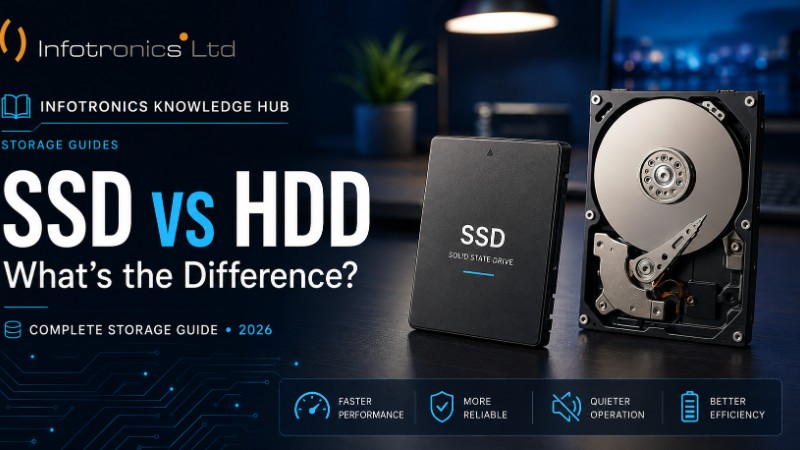
An HDD (Hard Disk Drive) is the traditional type of computer storage that has been used for many years.
Inside an HDD are spinning magnetic disks that store your files, documents, photos, videos, and operating system. A small mechanical arm moves across these disks to read and write data whenever you use your computer.
Because it relies on moving parts, an HDD is generally slower than an SSD and is more vulnerable to damage if the computer is dropped or receives a strong impact.
However, HDDs remain a practical option for users who need large storage capacities at a lower cost.
Common Uses for HDDs
- Storing large photo collections
- Video archives
- Backups
- Office document storage
- Home media libraries
?? Tech in Practice
Imagine you have a large filing cabinet filled with paper documents.
When you need a specific file, you must open the cabinet, search through folders, and retrieve the document.
That's similar to how an HDD works. It can find your files, but it takes a little time because physical parts have to move.
What is an SSD?
An SSD (Solid State Drive) is a newer type of storage that uses flash memory instead of spinning disks.
Since there are no moving parts, an SSD can access your files almost instantly.
This results in:
- Faster startup times
- Quicker application loading
- Faster file transfers
- Improved responsiveness
- Better durability
- Lower power consumption
Today, SSDs have become the standard storage option in most modern laptops and many desktop computers.
?? Tech in Practice
Now imagine all your important files are stored digitally in a well-organized cloud folder.
Instead of searching through a filing cabinet, you simply click and open the file almost immediately.
That's the experience an SSD provides.
SSD vs HDD – Side-by-Side Comparison
| Feature | SSD | HDD |
|---|---|---|
| Speed | Excellent | Moderate |
| Boot Time | Very Fast | Slower |
| Application Loading | Very Fast | Moderate |
| File Transfers | Fast | Slower |
| Noise | Silent | Audible while operating |
| Power Consumption | Lower | Higher |
| Durability | Excellent (No moving parts) | More vulnerable to physical shock |
| Storage Capacity | Available in many sizes | Often available in larger capacities at lower cost |
| Price per Gigabyte | Higher | Lower |
Why Does an SSD Feel So Much Faster?
Many people assume that installing Windows or buying a faster processor is what makes a computer feel quick.
In reality, the storage drive plays a major role in everyday performance.
An SSD can retrieve thousands of small files almost instantly, while an HDD has to physically move its read/write head each time data is accessed.
This difference becomes noticeable when:
- Starting your computer
- Opening Microsoft Office
- Launching a web browser
- Installing software
- Copying large files
- Running multiple applications
Even if two computers have the same processor and RAM, the one with an SSD will usually feel much faster in everyday use.
? Infotronics Expert Tip
If your computer feels slow but still meets your daily needs, upgrading from an HDD to an SSD is often one of the most cost-effective ways to improve performance without replacing the entire machine.
Is an HDD Still Worth Buying?
Yes—in the right situation.
While SSDs are the preferred choice for operating systems and everyday computing, HDDs still offer excellent value when large amounts of storage are required.
For example, photographers, videographers, and businesses that need to store large archives may choose HDDs because they provide more storage for less money.
Some users also combine both technologies, using an SSD for speed and an HDD for additional storage.
?? Common Mistake
Many buyers compare computers based only on storage capacity.
For example:
- Laptop A: 1TB HDD
- Laptop B: 512GB SSD
At first glance, Laptop A seems like the better deal because it offers more storage.
However, Laptop B will usually provide a much faster and smoother experience for everyday work, making it the better choice for most users.
Always consider both storage capacity and storage type before making a decision.
Which One Should You Choose?
Now that you understand the differences between an SSD and an HDD, the next question is simple:
Which one is right for you?
The answer depends on how you use your computer every day.
Let's look at the most common scenarios.
? For Students
Students rely on their computers for research, assignments, online learning, presentations, and video calls.
These everyday tasks benefit far more from speed than from massive storage capacity.
Recommended Choice
? SSD
Why?
An SSD allows your laptop to:
- Start up in seconds
- Open Microsoft Office quickly
- Launch web browsers instantly
- Switch between applications smoothly
- Improve battery efficiency
Unless you need to store thousands of videos or large media files, a 512GB SSD is more than enough for most students.
?? Tech in Practice
A university student powers on their laptop five or six times every day.
Saving just 40 seconds during each startup can add up to several hours over the course of a year.
That's one of the hidden benefits of an SSD—it saves time every single day.
? For Office Professionals
Business users often work with:
- Microsoft Word
- Excel
- Outlook
- Accounting software
- Web browsers
- Video meetings
These applications constantly read and write data.
A faster storage drive makes everyday work noticeably smoother.
Recommended Choice
? SSD
Why?
An SSD reduces waiting time when:
- Opening documents
- Saving files
- Launching applications
- Switching between programs
Less waiting means more productivity.
? For Designers and Content Creators
Creative professionals regularly work with:
- Adobe Photoshop
- Adobe Premiere Pro
- Lightroom
- AutoCAD
- Blender
- Large image and video files
These applications handle large amounts of data.
Recommended Choice
? 1TB SSD or Larger
Why?
Creative software benefits greatly from faster storage.
Projects load more quickly, previews generate faster, and exporting files becomes more efficient.
If additional storage is needed for completed projects, an external HDD can be an excellent option for long-term archiving.
? Infotronics Expert Tip
Many creative professionals use both storage types:
- An SSD for the operating system and active projects.
- An HDD for storing completed work and backups.
This combination offers both speed and cost-effective storage.
? For Small Businesses
Every minute counts in a business.
Waiting for computers to boot, applications to load, or reports to open can slow down daily operations.
Recommended Choice
? SSD
Whether you're running:
- A retail shop
- A pharmacy
- A school
- A cyber café
- An accounting office
An SSD helps employees spend more time working and less time waiting.
? For Gamers
Modern games are becoming larger and more demanding.
Many games now recommend or even require SSD storage for the best experience.
Recommended Choice
? SSD
Benefits
- Faster game loading
- Shorter loading screens
- Quicker updates
- Better overall responsiveness
While an SSD doesn't automatically increase frame rates, it significantly improves the overall gaming experience.
? When an HDD Still Makes Sense
Although SSDs are the preferred option for most users, HDDs continue to have an important role.
They are particularly useful for storing large amounts of data that don't need to be accessed frequently.
Examples include:
- Family photo collections
- Video archives
- Security camera recordings
- System backups
- Business archives
- Media libraries
If storage capacity is your highest priority and speed is less important, an HDD remains a practical and cost-effective solution.
Can You Use Both Together?
Absolutely.
In fact, many professionals consider this the ideal setup.
Here's how it works:
SSD
Used for:
- Windows
- Frequently used applications
- Current projects
- Everyday files
HDD
Used for:
- Photos
- Videos
- Backups
- Downloads
- Long-term storage
This setup combines the speed of an SSD with the affordability and capacity of an HDD.
? At a Glance
| If You Are... | Best Choice |
|---|---|
| Student | ? SSD |
| Office Professional | ? SSD |
| Business Owner | ? SSD |
| Graphic Designer | ? SSD (1TB or larger) |
| Gamer | ? SSD |
| Photographer | ? SSD + HDD |
| Video Editor | ? SSD + HDD |
| Home User | ? SSD |
| Long-Term File Storage | ? HDD |
?? Common Mistake
Some people buy an external HDD and expect it to make their computer run faster.
It won't.
An external HDD is designed for storing files, not improving your computer's performance.
If your goal is to make your computer faster, upgrading the internal system drive to an SSD is usually the better solution.
Thinking About an Upgrade?
If your current computer still meets your needs but feels slow, replacing an older HDD with an SSD may be a smarter investment than buying a brand-new computer.
For many users, it's one of the most noticeable performance upgrades they can make.
Common Mistakes to Avoid When Choosing Storage
Choosing the right storage isn't just about selecting the largest drive or the lowest price. Understanding how you'll use your computer can help you avoid common mistakes and get better value for your money.
Here are some of the mistakes we see most often.
? Mistake #1: Choosing Storage Based Only on Capacity
Many buyers immediately compare storage sizes.
For example:
- Laptop A: 1TB HDD
- Laptop B: 512GB SSD
At first glance, Laptop A appears to offer better value because it has twice the storage.
However, Laptop B will usually provide a much faster and smoother experience in everyday use.
Before comparing capacity, always check what type of storage the laptop uses.
? Mistake #2: Assuming More Storage Means Better Performance
Storage capacity and storage speed are two different things.
Adding more gigabytes doesn't automatically make a computer faster.
A 2TB HDD is still slower than a 512GB SSD when it comes to starting Windows, opening applications, and loading files.
? Infotronics Expert Tip
If your computer feels slow, increasing storage capacity alone is unlikely to solve the problem. Upgrading to an SSD often delivers a much more noticeable improvement.
? Mistake #3: Buying More Storage Than You'll Ever Use
It's tempting to choose the largest storage option available, but many users never come close to filling it.
Before buying, ask yourself:
- Do I mainly use cloud storage?
- Do I store lots of videos?
- Do I regularly download large files?
- How much storage am I using on my current computer?
Choosing storage based on your actual needs can help you save money.
? Mistake #4: Forgetting About Backups
No storage device lasts forever.
Whether you use an SSD or an HDD, important files should always be backed up.
Consider keeping copies of important documents and photos on:
- An external drive
- A trusted cloud storage service
- Another secure location
Having a backup can save you from losing valuable data if your computer is damaged or stops working.
? Mistake #5: Ignoring Upgrade Options
Some laptops allow you to upgrade or replace the storage drive later, while others have the storage permanently built into the motherboard.
If you think your storage needs may grow, check whether upgrades are possible before making your purchase.
? SSD vs HDD Buying Checklist
Use this quick checklist before choosing your next computer or storage drive.
Performance
? Do I want faster startup times?
? Do I want applications to open more quickly?
? Do I often multitask?
If you answered yes, an SSD is likely the better choice.
Storage Needs
? Do I store large collections of photos or videos?
? Do I need long-term file storage?
? Do I regularly back up important data?
If you answered yes, an HDD can still be a useful addition.
Future Planning
? Will my storage needs increase over the next few years?
? Can the computer be upgraded later?
Planning ahead today can help you avoid unnecessary costs in the future.
Frequently Asked Questions
Is an SSD always better than an HDD?
For everyday computing, yes. An SSD provides faster performance, quicker startup times, and a smoother overall experience. However, HDDs remain an excellent choice for storing large amounts of data at a lower cost.
Can I replace my HDD with an SSD?
In many cases, yes. Many laptops and desktop computers allow the internal hard drive to be replaced with an SSD. Before upgrading, it's important to confirm compatibility with your specific device.
Will an SSD make my old computer faster?
If your computer currently uses an HDD and the rest of the hardware is still capable of meeting your needs, upgrading to an SSD can significantly improve everyday responsiveness.
How much SSD storage do I need?
For most users:
- 256GB – Basic everyday use
- 512GB – Recommended for most students, professionals, and home users
- 1TB or more – Ideal for content creators, gamers, and users with large files
Can I use an SSD and an HDD together?
Yes. Many desktop computers and some laptops support both. This gives you the speed of an SSD and the larger storage capacity of an HDD.
? Did You Know?
Replacing an HDD with an SSD is one of the most effective ways to improve a computer's everyday performance.
Many users notice dramatically faster startup times, quicker application loading, and a more responsive system—without changing the processor or adding more RAM.
For older computers that are otherwise working well, an SSD upgrade can extend the device's useful life and delay the need for a replacement.
The Infotronics Verdict
If you're choosing between an SSD and an HDD in 2026, here's our recommendation:
For most people, an SSD is the best choice.
It delivers faster startup times, smoother performance, quieter operation, and better energy efficiency, making everyday computing more enjoyable and productive.
If you need to store large collections of photos, videos, or backups, consider adding an HDD as secondary storage rather than replacing an SSD altogether.
Choose storage that supports the way you work today while giving you room to grow tomorrow.
Final Thoughts
The right storage solution can make a bigger difference than many people expect.
While processors and RAM often receive the most attention, your storage drive plays a major role in how responsive your computer feels every day.
Whether you're buying a new laptop, upgrading an existing computer, or choosing storage for your business, understanding the difference between SSDs and HDDs helps you make a smarter investment.
Technology should simplify your work—not slow you down.
Need Help Choosing?
Not sure which storage option is right for your computer?
The team at Infotronics is ready to help you choose the best solution based on your needs, budget, and future plans.
Whether you're purchasing a new laptop, upgrading an older device, or expanding your storage, we're here to provide practical advice and reliable technology solutions.
? Call or WhatsApp: 0756 398 449
Continue Learning
Continue exploring the Infotronics Knowledge Hub with these helpful guides:
- How to Choose the Right Laptop for Your Needs in 2026
- How Much RAM Do You Really Need?
- Laptop vs Desktop: Which One Is Right for You?
- How to Make Your Laptop Battery Last Longer
- Signs It's Time to Upgrade Your Computer
About the Infotronics Knowledge Hub
The Infotronics Knowledge Hub is your trusted source for practical technology advice. Our goal is to make technology easier to understand by providing clear, honest, and informative guides for students, professionals, businesses, and everyday computer users.
Whether you're buying a new device, upgrading existing hardware, or learning something new, we're here to help you make informed technology decisions with confidence.